Journey Details
Navigating to the Journey Details Tab
While on the Web App, you can navigate to the "Journey Details" tab:
- From the horizontal Asset Table
- From the vertical Asset List
Tab Controls and Layout Options
While on the Journey Details tab, you can:
- Resize the table: Adjust the height for a more flexible viewing experience.
- Hide the table: This hides all UI components except for the map. When you choose to show it again, the system returns you to the same tab you were viewing before hiding.
- Show Details: This will toggle the right hand information panel on/off.
- Switch to List View: You can toggle to a vertical layout with live Asset List View under the Assets tab.
Asset Selection
You can select a specific asset to view its historic journey details via:
- Single asset selection (searchable dropdown)
- The dropdown includes:
- ACTIVE assets with a paired tracker
- DEACTIVE (VISIBLE) assets, regardless of tracker status
- You can still view their past journeys, but they will no longer receive updates.
- The list is shown alphabetically by asset name.
- Only assets from your assigned display groups or visible asset settings will appear.
Auto-selection behaviour
- If you had an asset selected on the Assets tab before navigating to Journey Details, that asset will be automatically pre-selected.
- If no asset was selected, none will be pre-selected.
- When switching between the Assets, Journeys and Journey Details tabs, the previously selected asset remains pre-selected.
Selecting the Date
You can set a date using the date picker:
Default range: Today’s date
The system will remember your last selected date if you leave the Journey Details tab and return to it later.
Earliest date selectable: 3 years before today
Future dates cannot be selected
Journey Details Table View
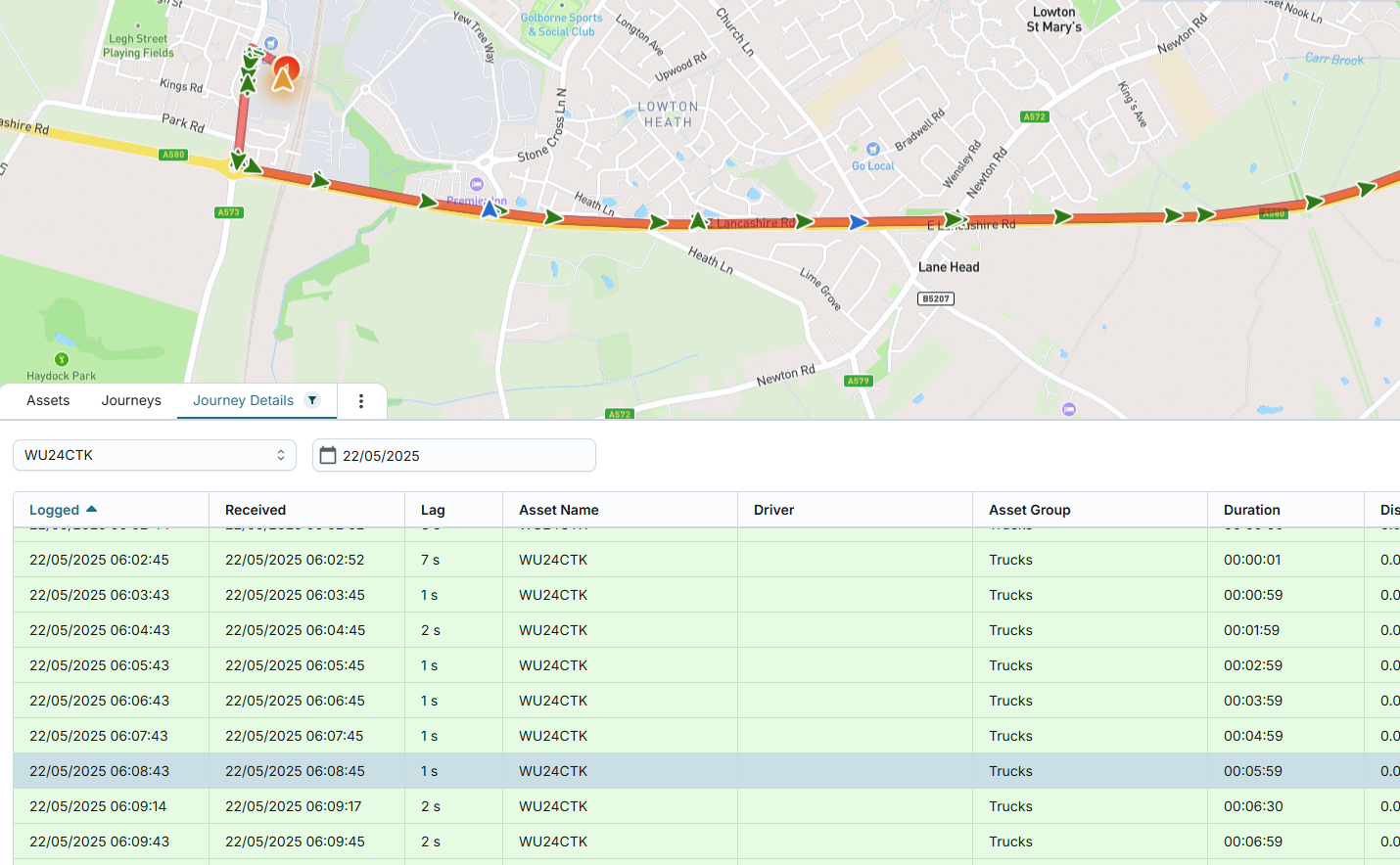
On the Journey Details tab, you can view a data report-level breakdown of journey data reported by the asset's tracker. This detailed view allows users to trace the precise sequence of data packets throughout the journey and investigate patterns, locations, or events with high accuracy.
Each row in the table represents a data report (packet) sent by the tracker.
- If one packet triggered multiple events, they are listed together comma-separated in a single row.
- No duplicate rows will be created for packets with multiple events.
Default behaviour:
- Records are sorted from most recent to oldest by logged timestamp.
- The top record is automatically pre-selected.
- The system displays 50 records per page with pagination controls.
- You can navigate between pages and see the total number of rows.
Visual indicators:
- Each row is coloured based on the Moving Status of the asset:
- Green: Moving, Stationary, Idle, Excessive Idle
- Blue: Parked
- Red: Speeding
Table columns
- Logged: Date and time the asset was at the location
- Received: Date and time the system registered the data
- Lag: Time difference between Logged and Received
- Asset Name: Historic name of the asset at the time of report
- Driver: Historic name of the driver at the time of report
- Asset Group: Historic name of the asset group at the time of report
- Duration: Journey duration or parking duration
- Distance (miles/km): Travelled since journey start, or while parked
- Speed Limit (MPH/KPH): Road speed limit at the time of report
- Asset Battery Level
- Fuel Level
- Moving Status: Status based on the packet received
- Geofence: Historic name(s) of geofence(s) at reported location (comma-separated)
- Address: Location address from the report
- Temp 1, Temp 2: Temperature readings from the report. Formatted if temperature format is set; otherwise shown as-is.
- BT Temp 1, BT Temp 2: Bluetooth temperature readings based on the report
- Engine RPM: Reported engine revolutions per minute
- Fuel Used: Fuel used since the start of the journey
- Event: Events raised by the system based on the report packet; may include:
- Ignition on/off
- Entered/Exited/Arrived at/Departed geofence
- Odometer reading at end of journey
- Impact detected
- Harsh acceleration/braking/cornering
- Asset battery level below 11.8V
- Engine started/stopped
- Idling/Excessive Idling
- Speeding/Excessive Speeding
- DI 1–4, PTO, DO 1–4: On or Off. If custom labels are set in the asset group, those are shown instead of On/Off.
- Tracker Battery Level: Tracker battery level from the packet
- GPS Fix: Indicates whether the GPS location was accurate
Sort & Filter Options
When viewing the list of journey report packets for a selected asset and date:
- You can sort the list by “Logged” timestamp (ascending or descending).
- You can filter by “Event”, using a multiselect dropdown:
- Options include:
- All
- Blank
- Then, alphabetically listed unique events in the following order:
- Arrived at geofence
- Asset battery level
- Departed geofence
- Entered geofence
- Engine started
- Engine stopped
- Excessive idling
- Excessive speeding
- Exited geofence
- Harsh acceleration
- Harsh braking
- Harsh cornering
- Idling
- Impact detected
- Ignition off
- Ignition on
- Odometer
- Speeding
- You can select/unselect all or choose specific options.
- The system will show results matching the selected combination.
- Filters and sort can be used in combination, and results update accordingly.
- You can reset sorting and filtering to default (no filter, most recent Logged first). Click the filter icon to clear all filters.
- Top filters for asset and date are preserved when applying sorting/filtering within the table, and vice versa.
- The system will persist applied filters and sort settings at the user level, so the same view is restored when the user returns.
View Journey Details on the Map
On the "Journey Details" tab:
- The map defaults to standard map mode.
- You can switch between Standard and Satellite view modes.
- Switching view mode on one tab does not affect the other tabs on Fleet page; each tab remembers its own map mode independently.
- You can zoom in/out and pan in all directions to explore the map.
- You can view, add, and edit geofences.
- You can search for a location by address, postcode, or geofence name.
- Street View mode can be activated.
- When a row is selected in the Journey Details table, the map dynamically displays the corresponding journey using GPS data from each report packet.
Route Rendering
- The selected journey's route is shown as a sequence of arrows based on each GPS coordinate pair reported by the tracker.
- Each arrow:
- Represents one exact location and direction of travel.
- Points in the precise heading direction of the vehicle.
- Is coloured based on Moving Status or Harsh Events (see below).
- The exact selected packet is clearly highlighted on the map, making it easy to visually identify.
Journey Start/End Points
- The journey's start and end points are shown based on ignition events:
- Start: Ignition On
- End: Ignition Off, displayed with a "P" icon
- The route colour and start number (for example, ①, ②, etc.) match the journey representation on the Journeys tab.
Parked Packets After Journey End
- After an Ignition Off:
- Any Parked packets are shown only as “P” icons at their GPS coordinates.
- These icons are not connected to the previous route.
Overnight Journeys
- If a journey spans multiple days and the user selects a specific date:
- The full journey route appears on the map.
- Only the arrows for packets on the selected date are shown.
In-Progress Journeys
- If a packet from an ongoing journey (i.e., no Ignition Off yet) is selected:
- No journey is displayed on the map for now.
Arrow Colouring Logic
- Arrows are coloured by Moving Status:
- Green: Moving
- Blue: Stationary
- Yellow: Idle / Excessive Idle
- Red: Speeding
- If a Harsh Event (Acceleration, Braking, Cornering) is detected:
- Arrow is coloured Red, overriding any status-based colouring.
Map Interaction
- Clicking on an arrow or "P" icon on the map:
- Selects the corresponding packet in the table (if visible).
- Auto-scrolls the table to the matching row.
- If the clicked packet is filtered out or not visible in the table:
- No row is selected in the table.
Zoom
- You can apply “Zoom to” options via the table to:
- Focus on the entire journey, or
- Zoom into a specific GPS location.
Tooltip on Hover
Hovering over an arrow or “P” icon displays a tooltip with the following:
- Asset Name
- Asset Group
- Logged Time
- Distance (based on company’s distance unit setting)
- Duration
- Address
- Driver
Filter & Map Behaviour
- Filtering the Journey Details table:
- Does not affect map visibility of the full route.
- If a packet is still selected (and not filtered out), the map behaves normally.
- If a packet is clicked on the map but isn’t visible in the filtered table, the map will not highlight any row in the table.
Related Articles
Viewing Asset Details
Access to the Assets section is controlled by the SeeCompanyAssetsPage permission. This permission grants users the ability to view the list of assets and access individual asset details. The Viewing Asset Details page allows users to view ...Viewing Asset Group Details
Access to the Asset Groups section is controlled by the SeeAssetGroupsPage permission. This permission grants users the ability to view the list of asset groups and access individual asset group details. You cannot add, edit, or delete asset groups. ...Viewing My Company Details
Access to the Company section is controlled by the SeeCompanyPage permission. This permission grants users the ability to view and access company details. Access Company Details: Navigate to the Company section of the application. The company details ...Navigating the Journeys Tab
Navigating to Journeys Tab While on the Web App, in "Fleet" you can navigate to the "Journeys" tab from both: The horizontal Asset Table The vertical Asset List The system will load the data from the Asset that was selected on the Assets page. Tab ...Accessing Realtime & Historic Tracking
Overview The Tracking features lets you explore real-time tracking and past activity for your assets, offering visibility into journeys taken, routes followed, and driving behaviours. It is available on the Web App under the Fleet page. There are ...